> For the complete documentation index, see [llms.txt](https://nexgen-software-services.gitbook.io/nexgens-software-day-trading-documentation/llms.txt). Markdown versions of documentation pages are available by appending `.md` to page URLs; this page is available as [Markdown](https://nexgen-software-services.gitbook.io/nexgens-software-day-trading-documentation/indicator-packages/tradingview-indicators/2.-tradingview-tips.md).
# 2. TradingView Tips
TradingView Platform Tips
***
{% hint style="info" %}
If you can't find what you're looking for, feel free to check out TradingView’s [**official FAQ's and knowledge base**](https://www.tradingview.com/support/knowledge-base/) — or just let one of our team members know, and we’ll make sure your questions get answered.
{% endhint %}
### Download The Powerful Desktop App
You can use a browser, but we recommend downloading the PC desktop, Mac, or iPad version using the following link below
{% embed url="" %}
***
{% embed url="" %}
***
### Workspaces
***
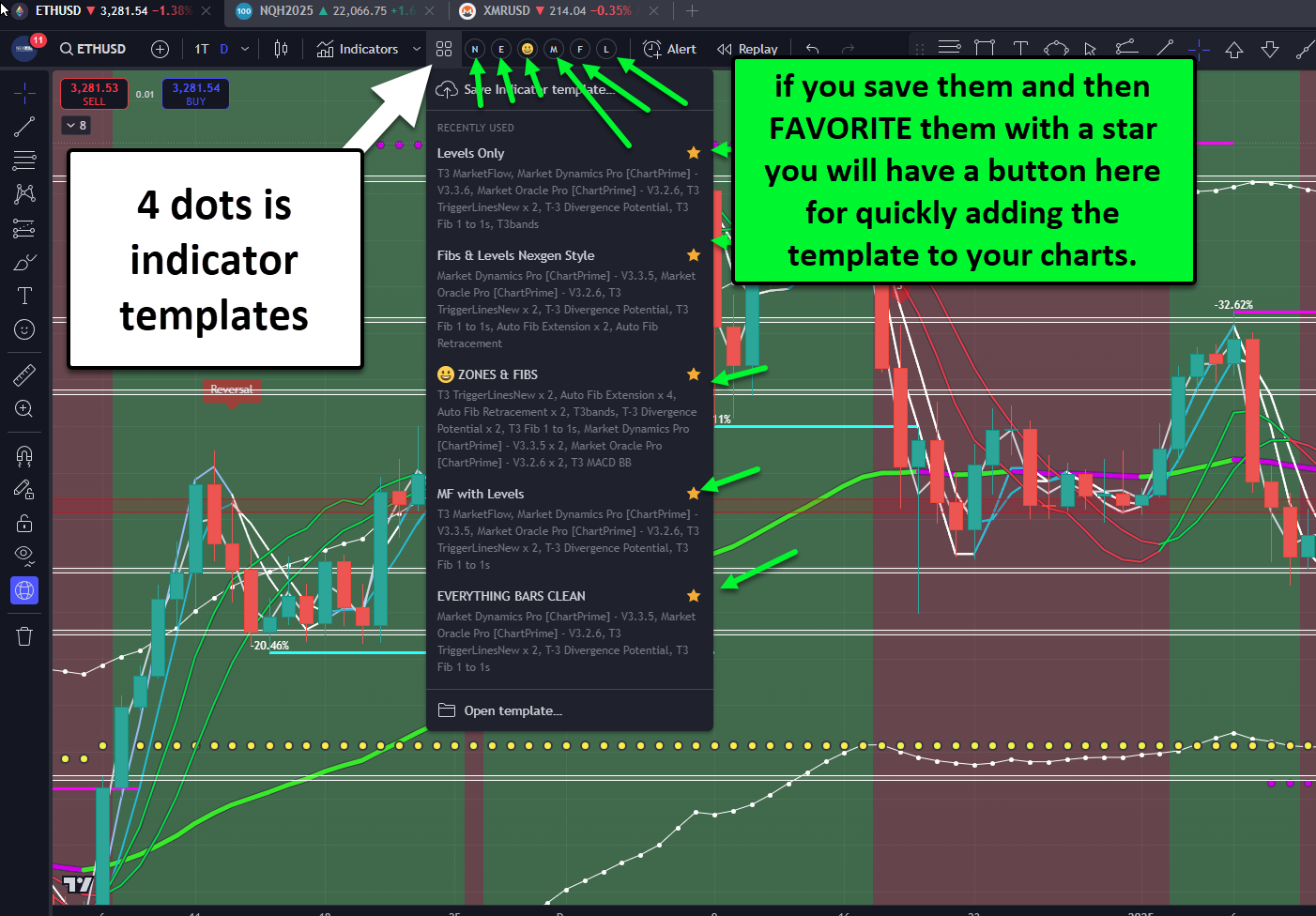
### Save Nexgen Templates From Existing Nexgen Charts
Creating chart templates with preset indicator configurations will save time once you finalize your chart setup and look using TV. You can also favorite the templates; TV will make a button. Click the button, and the indicators in your template and the settings you saved will be applied to the chart.
For existing pre-made workspaces from which to save settings or templates: [**Click Here**](https://nexgen-software-services.gitbook.io/nexgens-software-day-trading-documentation/nexgen-tradingview-setup/nexgen-tradingview-indicators-get-access#premade-workspaces-for-you-to-copy-and-save)
***
### Creating Chart Templates
Preset indicator configurations will save time once you finalize your look using TV. You can also favorite the templates; TV will make a button. Click the button, and the indicators in your template and the settings you saved will be applied to the chart.
***
### Remove / Alter Existing Indicators On The Chart
***
### Reset Your Paper Trader / Simulated Account
***
### Add Indicators To A Chart
***
### Stop Loss / Profit Target Levels
{% embed url="" %}
You can also use the order buttons or an order ticket to have a preset target and stop loss confirmed once you take your position in the market.
To place a limit order on the chart, right-click and select trade, or use the right mouse button on the chart's edge to select a price to place an order.
***
### Picking Your Chart Layout
***
### Share A Workspace
Turn on sharing and copy-paste the link to the user you wish to share it with. To open a shared workspace, simply click the link that was sent. You will receive a VIEW ONLY workspace version; you must SAVE A COPY for your machine.
***
### Profit & Loss (PNL) Account Status
***
### Multiple Workspaces Open At Once
As long as your Trading View plan level supports it. To open more workspaces, make a new tab and select your workspaces.
***
### Enable/Disable Order Activation Sounds
***
### Close A Position / Flatten All Immediately
***
### Market Replay Multiple Charts At A Time
{% embed url="" %}
***
### Multiple Workspaces / Chart Windows
If you have all of your markets in one big workspace, your connection will be simple. However, if you use more than one open workspace on multiple monitors, you must accept a "concurrent connection" warning when switching workspaces, which is Trading View's way of doing this.
{% hint style="info" %}
***Note:*** Trading View has an extensive library of educational videos that you can access on their\
[**YouTube channel**](https://www.youtube.com/@TradingView)
{% endhint %}
***