> For the complete documentation index, see [llms.txt](https://nexgen-software-services.gitbook.io/nexgens-software-day-trading-documentation/llms.txt). Markdown versions of documentation pages are available by appending `.md` to page URLs; this page is available as [Markdown](https://nexgen-software-services.gitbook.io/nexgens-software-day-trading-documentation/indicator-packages/ninjatrader-8-indicators/t3-trend-trade-strategy.md).
# T3 Trend Trade Strategy
This page will describe and provide instructions on how to apply and using the T3 Trend Trading automated system version that incorporates small chart entry and exit logic.
***
## The Trend Trade Strategy
The goal is to enable users to trade Nexgen's trend trades with minimal effort and analysis. The current version continues to add functionality, consistency, and automation of the T3 ProTrader indicators analysis for trend trading. We have designed the T3 Trend System to replicate what we have taught and continue to teach over the last decade. The system will use any user-desired combination of strong-momentum looks in the triggers and pullbacks for entry when there is room to the target, provided no termination conditions limit that room. See the inputs section to adjust the inputs to your personal preferences.
***
### PREPARE FOR SUCCESS BY CLEANING OUT CACHE & TEMP FILES
The Cached Files will prevent the small chart from generating signals on replay if you have already processed the data set once. This will give you fits wondering why it will skip a trade. It thinks it already did it, and if "max entries" is set to 1, it may think it already happened.
You should also clean out your tick data daily. This is a good practice for maintaining consistency in the chat room and with other users.
The final piece of the puzzle to make sure that your computer clock is in line with the atomic clocks of the world. Do this by going to your date and time settings and clicking SYNC.
### Use a Windows High Power Plan - Very Important.
If you use a "balanced plan," which most laptops use by default, your hard drive will shut off, and the CPU will run at 5% instead of 100% to save energy. Ninja Trader needs 100% all the time.
{% embed url="" %}
{% hint style="warning" %}
## Adjust TIME ZONE To Eastern or Change Templates
**If the T3 Strategy default templates will not use" start and end times", but are based on the EASTERN / New York time zones if set. If not, please adjust them to your personal clock time.** \
\
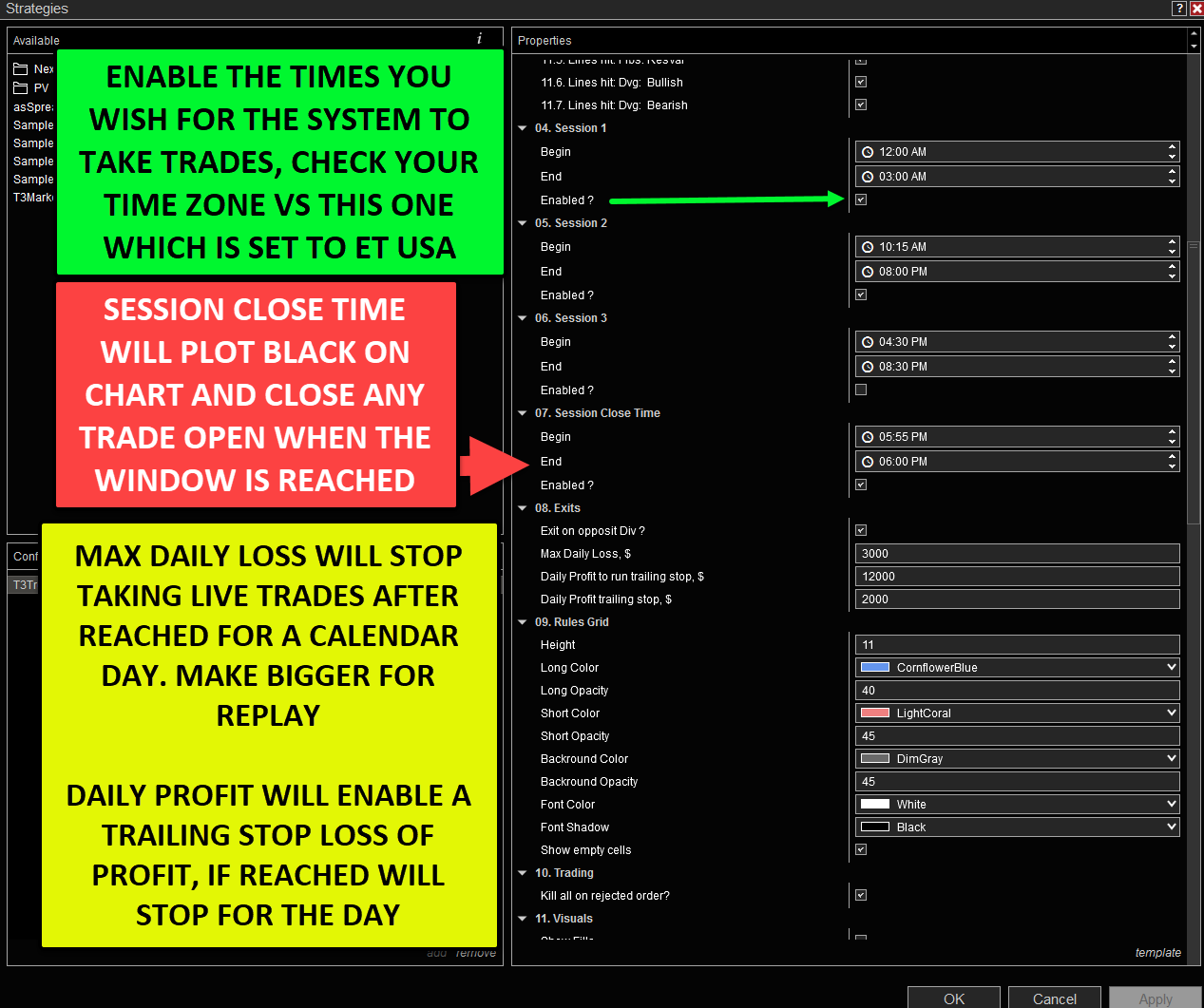
If you are not in EST, you will need to adjust your **session start** and **end times** accordingly.\
See time settings in the [inputs section](https://nexgen-software-services.gitbook.io/nexgens-software-day-trading-documentation/indicator-packages/ninjatrader-8-indicators/t3-trend-trade-strategy-v2#input-meanings).
{% endhint %}
## Transmit (Large Chart) vs. Receiver Small Chart
The same strategy will allow you to trade one chart solo or use a combination of two different charts. The default setup will be a large chart transmitting the main signals and a smaller chart refining the entries and/or exits based on what we teach.
## Small chart entry logic
The current strategy incorporates two main types of entry.
1. a "market order" or reversal bar entry, a market order triggered when there is a buy or sell signal on the large chart.
2. Limit orders that use the trigger line zones and indicators in those zones to dynamically place limit order entries.
## Small chart management
The Trend Trade System will incorporate many of the small chart management entry and exit techniques required to preserve trading capital. Please watch the video below to learn basic concepts you can apply to your trading system.
The System will incorporate the following exits when selected in the inputs.
1. Any Divergence - if there is any divergence against the position, it will exit. This exit will also take the time to read the small trigger line direction. When the triggers are NOT favoring staying in or "against" the trade, the system will exit. If the small triggers favor continuation, the system will not take the exit.
2. Higher / Lower Divergence- if in a trade and you have a divergence that is higher or lower than the prior, it will exit the position when the second divergence condition is true.
3. Pivot Stop Out of Prior Divergence- PSO- When price reaches a prior divergence line and makes a reversal, the system will exit.
4. Fibonacci-Based Exits: When the price reaches a Fibonacci level and creates a reversal bar, the system exits.
5. One-to-One Exits - When the price reaches a One-to-One level and reverses, the system will exit.
You should take the time to watch this management video for a detailed explaination of what the system will try to do with each of the exits.
{% embed url="" %}
***
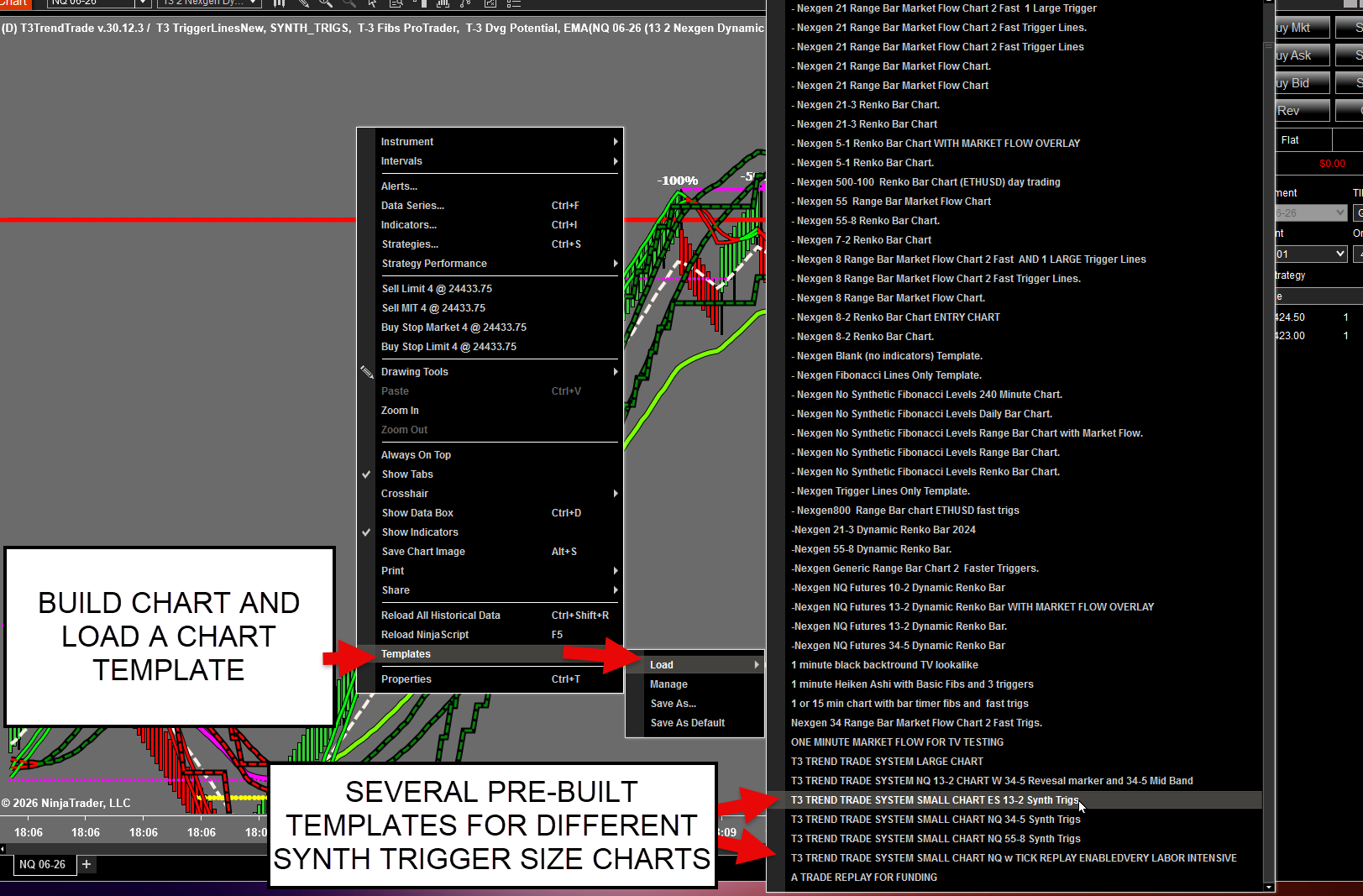
### System Indicator Chart Template
When building a *new* chart, please uncheck **the "TICK REPLAY" button** and use the **T3 Trend Trade System Chart Template for your large chart. Use the T3 Trend Trade System Small Chart with the appropriate Synthetic Trigger line size for the small chart setup. For example, if using 34-5, you may wish to use the 13-2 synthetic trigger template. If you use a 13-2 for a large chart ( ES ) you may wish to use the 5-1 system chart template. Both will include the same indicators, but the small chart will include synthetic triggers and the proper system settings.**
Note: if you have a very powerful system, you may use tick replay on your charts. Please be mindful if your system can handle this amount of processing.
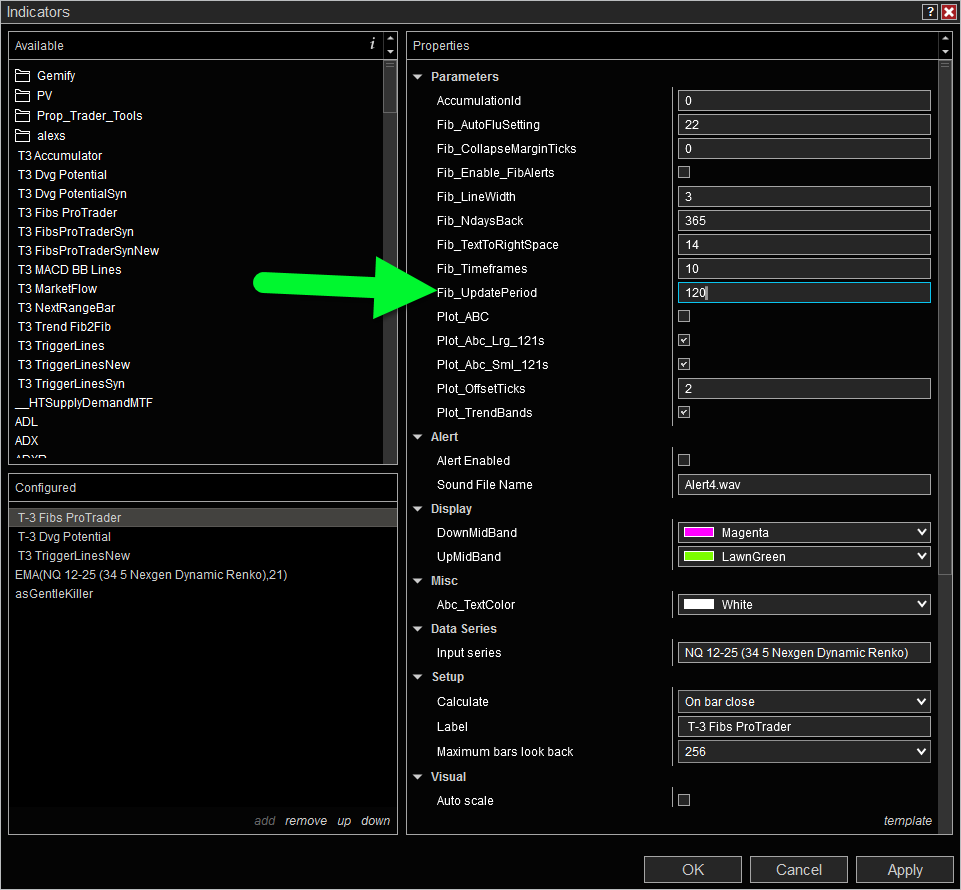
You may also format any of the indicators, such as the Fibonacci Update Period, EMA size, or T3 Trigger Line size, and the system will read and use the values on the chart.
***
### Adding The Strategy To Your LARGE CHART
Build the size chart you wish to use and apply the T3 Trend Trade System Large Chart template. Right-click on your chart and select strategies.
You will want to format your system rules and session time templates, and you can also load any of the premade system templates Nexgen has provided after running the installer.
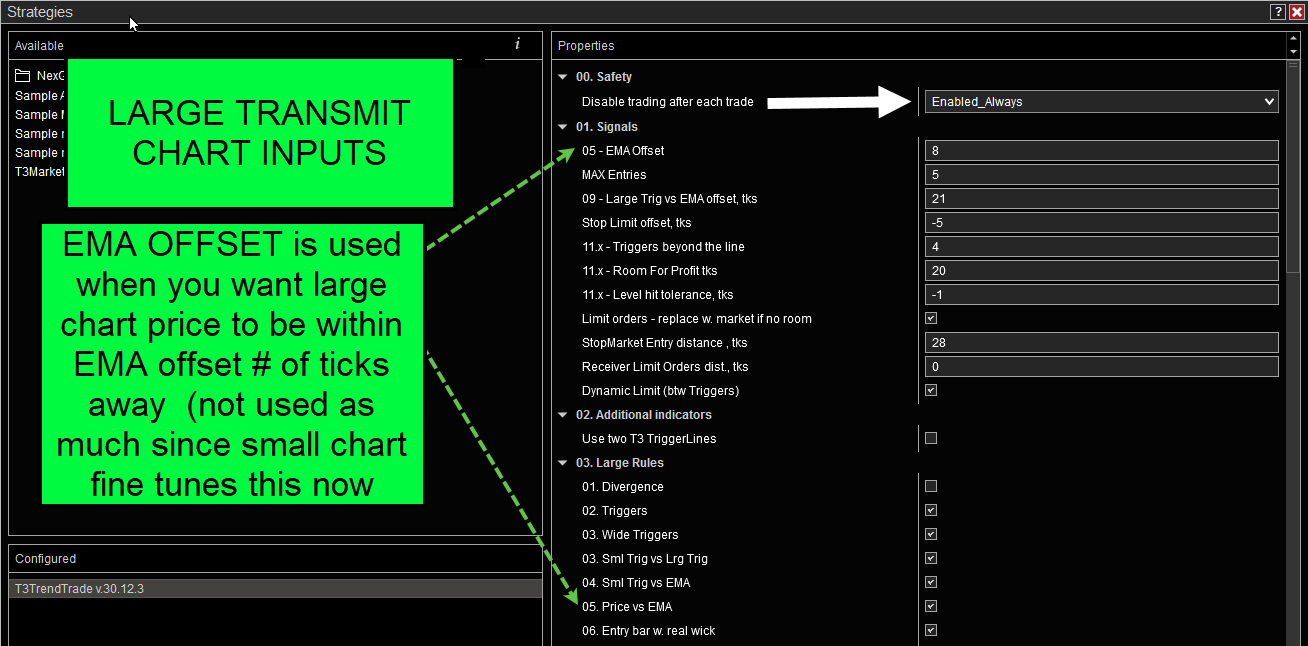
Remember that the trend trade system consists now of a Large Chart, which is a transmit chart. The large chart will send the possible entry signal to the smaller chart for further analysis.
To apply the basic settings to your large chart, select the templates section and apply the default large transmit chart. This will get you started in your testing.
You will then want to select your NinjaTrader ATM for trade management. Select the account you would like to see the trades placed in, and then ENABLE the strategy by checking the box.
Remember that the large chart must be run in tranmitter mode so it send the potential signals to the smaller chart.
Historical arrows will plot, and you can enable or disable the trading signals by toggling the transmit button off in the sidebar. Remember that the strategy WILL NOT trade outside the time session, as indicated by the dark gray in the settings.
## Create your small chart
Create a chart and apply the small chart system template layout for indicators.
Right-click your chart, apply the strategy, and start with the default receiver chart template.
Important to note: if you use your own chart templates you love, that is OK. You must rename the Synthetic Trigger lines that use a different timeframe "SYNTH\_TRIG," or you will get a warning to that effect, and you will not be able to run the strategy.
It is important to note that the small chart analysis, filters, and settings are 100% independent of the large chart system settings and filters. The SMALL CHART ATM will be used for live trades and the large chart ATM makes no difference when small chart is used for entries.
You are now ready to start doing replay or trading the market. With both the transmit chart and the receiver chart active, when a signal happens on the large chart, and all of your conditions in the grid are true on the small chart, and you have a reversal bar for entry, the small chart will place your trades and use the ATM on the small chart.
The Receiver chart will plot a BLUE buy zone or a RED sell zone when a large chart signal is confirmed, further assisting you in making your trading decisions on the small chart.
***
{% hint style="warning" %}
## ⚠️ **Important:** Check Your Grid NOW for the correct application of the strategy
{% endhint %}
You must check your grid right away after enabling the strategy. If the grid is populated, you will see trades as they happen in real time. If the grid is not populated, this will alert you to reboot NinjaTrader and clear the cache and temporary files during the reboot.
Once enabled, if the current time is in a trading time zone and the rules are met, it will generate trades. In the following picture, you can see that the large chart generated a signal, and the small chart also met all of its rules. REMEMBER- just because the large chart makes a signal, if the rules on the small chart are not what you set it for, there will be no trade.
Remember, while all this automation is happening, you are still in 100% control of your trades, stops, and targets.
You may still enter your trades manually if you wish, under your personal conditions.
The system will enter if you do not, and the system will manage the trade based on the rules and exits you selected.
The system now has exit buttons and "SOFT CLOSE " built into it. This will allow you to exit trades without rearming the system. If selected, the system will disable after every trade, after a soft close, or never.
## Manual trading will use system exit rules
It's important to remember that any rules you have active in the trading system will also apply to your manual trading.
Once an order is filled, the NinjaTrader ATM will place the stops and targets you selected on the smaller-timeframe chart.
As a trader, you will have complete control over your management of the trade. You may also add on to a position that the system has generated if it meets your rules for a higher probability trade.
A few plots you will see, such as a line where the limit order entry was placed on each bar. There is also a FILL plot, so you know when and where it was filled. You may turn these on/ off or change plot colors.
When analyzing a trade setup, asking questions in the chat room, or needing technical assistance, make sure your grid is activated in your pictures.
***
{% hint style="warning" %}
## ⚠️ **Important Risk & Monitoring Notice** ⚠️
Automated futures day trading systems by Nexgen Software Services are **not set-and-forget tools**. While the strategy will handle 100% of the entries and exits, all users must continuously monitor positions and system activity. Market conditions can change rapidly, and during periods of **extreme volatility, news events, sharp trends, or unusual price behavior** can lead automated strategies to behave in ways that require immediate user intervention. Failure to monitor the system may result in significant losses.
By using the automated strategies, you are solely responsible for managing your risk, ensuring proper system functioning, and pausing or overriding the strategies if markets become excessively volatile or behave outside normal expectations.
{% endhint %}
***
The strategy was designed with the NQ and or ES futures markets in mind. The RTY, YM, GOLD (GC), or other markets may be tested for positive gains with various settings and ATMs. For the NQ, one would use a 34-5 Dynamic Renko Chart and a monitor management chart using a 13-2 Dynamic Renko Chart. For S\&P E-Mini Futures, one might use a 13-2 as a large chart and the 5-1 as a management chart. The system will run on any size dynamic renko bar you wish to test. Volatility in the market may force you to use a larger timefame. Such as a 21-3 ES large chart or a 55-8 large chart in the NQ.
***
### Input Meanings ( Large Chart First )
We designed this strategy to be transparent and accessible, not a black box or hidden logic; he wanted everyone to understand what they were trading and why. He views this strategy as a supplementary tool to the discretionary trading Nexgen has taught since the 1990s.
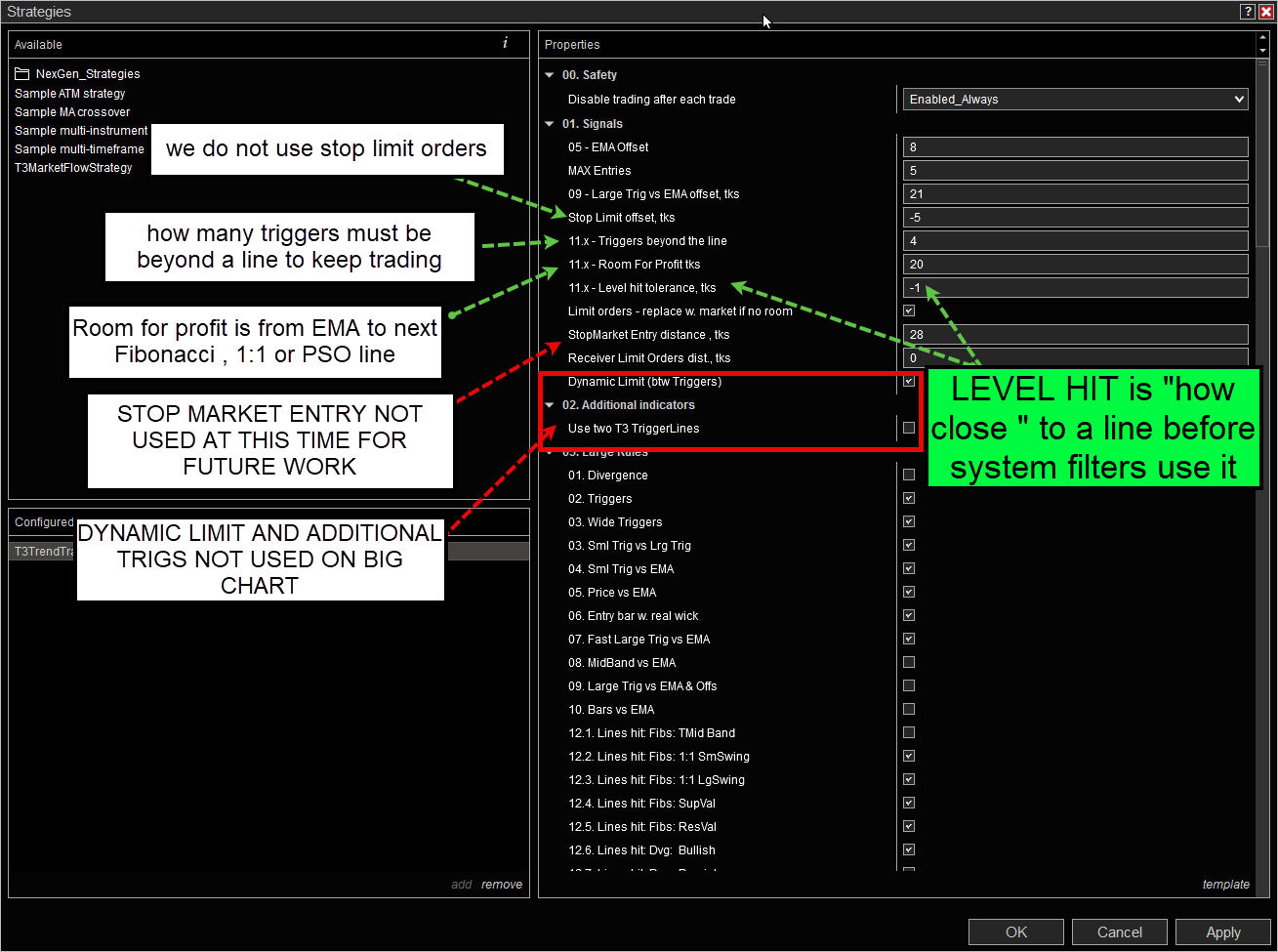
05 EMA Offset - this is how many ticks before ( positive #) or after ( negative #) you wish to place your entry orders when using the large chart in SOLO mode without a small chart.
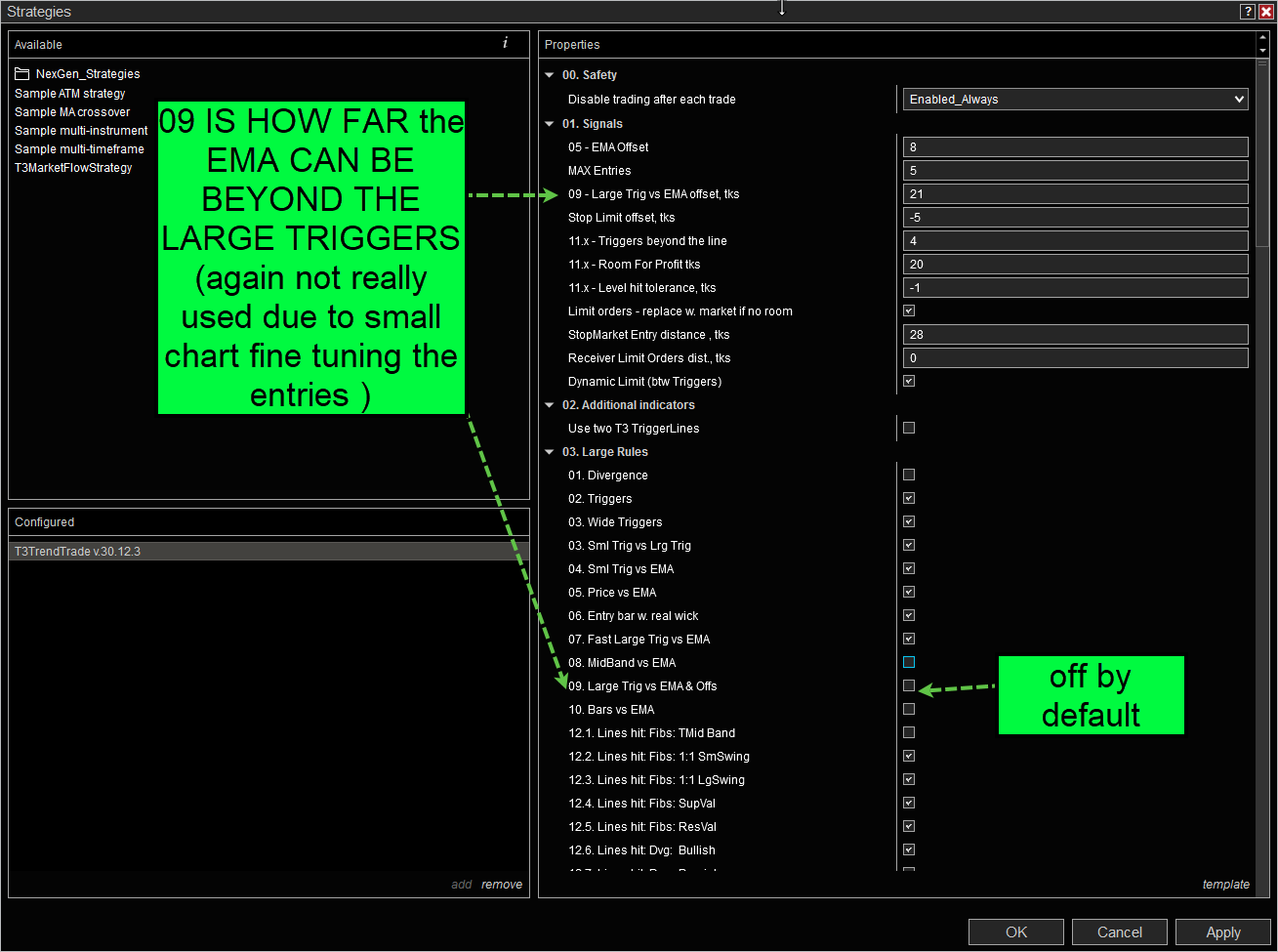
09 input is a comparison of the position of the EMA on the chart relative to the large triggers. This is not really used when small chart entries are used and would only be used if the large chart was in solo mode.
Some inputs are not used on the large chart, and descriptions of those we do.
There are 3 "trading sessions" that will allow trades to happen and one close session window, during which any trade opened within the window will be automatically closed. There is also a daily loss limit and a profit objective with a dollar trailing drawdown.
***
### Filters or Rules Used on Large Chart For Entry Signals
1. Divergence. Either True or False - if this is the only rule, it will show in the grid for study.
2. Both sets of triggers are either red or green, indicating whether they are crossed up or down.
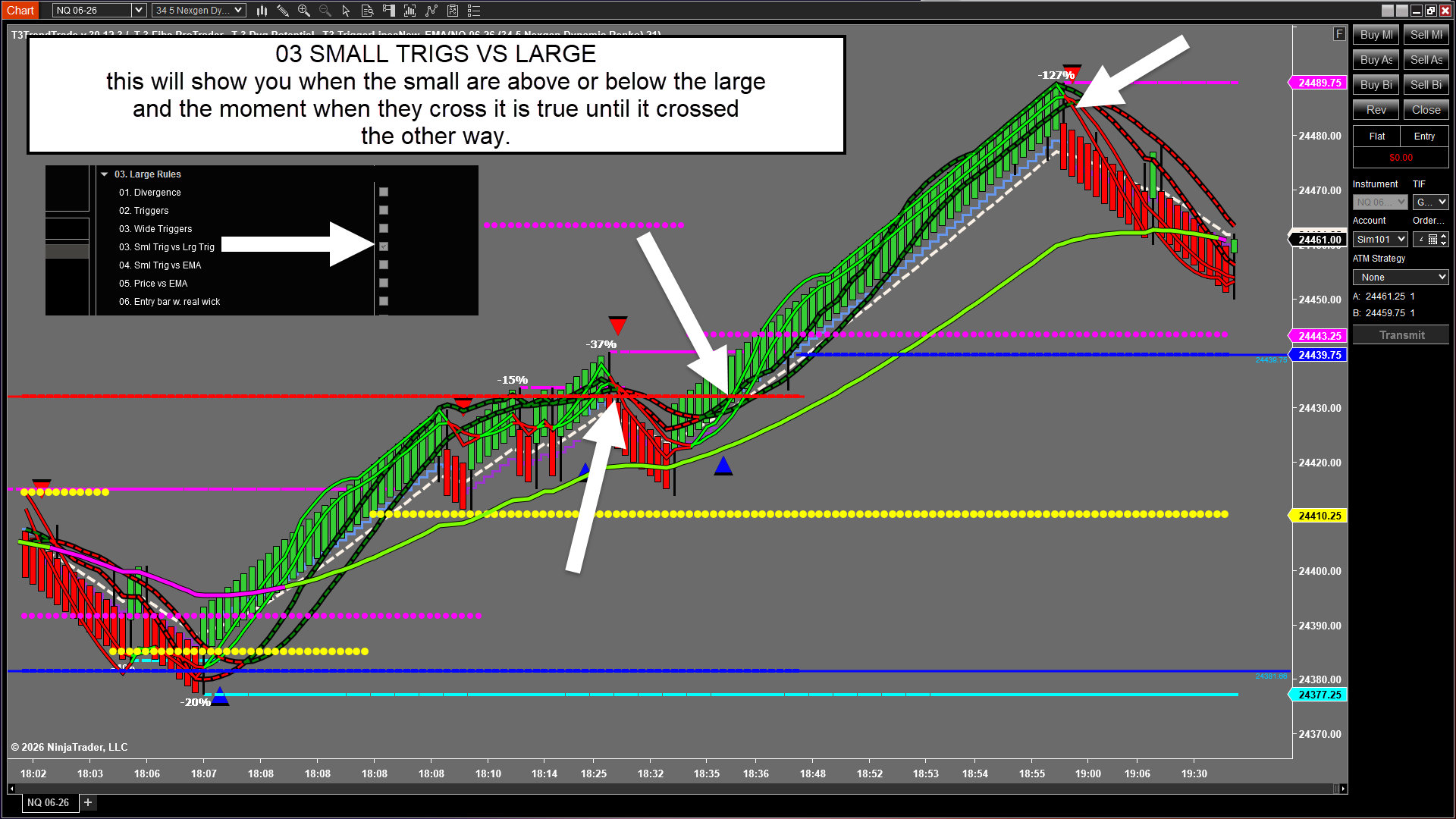
3. Wide Triggers, The more favorable momentum looks when small triggers are completely outside of the large triggers.
The final trigger line comparison is when the small crosses over the large completely.
4. Input 04 is when the small triggers CROSS over or under the EMA on teh big chart. This will remain true until it crosses in the opposite direction.
5. Price vs EMA - this is when price (=/-) offset reaches the EMA.
6. The Entry bar must be a TAIL, or have a wick with the price above or below the prior bar. Keep in mind that this is an INTR-BAR condition.
7. The Large Trigger Lines VS EMA. The location of the large triggers as they break above or below the EMA. This will significantly slow down trend trades in a strong trending market. This and the EMA vs MID BAND #8 will require much more of a trend trade.
8. The 21 EMA crossing above or below, and its location relative to the T3 Mid Band. Due to real-time ticks, it doesn't always plot arrows when true, but the system will recognize it.
9\. Large Triggers vs. the EMA/- the offset input. This will stop taking trend trades when the EMA gets too many ticks on the "wrong" side of the large triggers.
10. Price bars entirely on the "other side" crossing over the EMA.
***
#### Limit or Market Orders Using the Dynamic Zone Inputs.
When you enable the Dynamic Limit (between triggers) input (big white arrow), it plots the blue and red zones and dictates where limit orders are placed at indicator lines or, if using market orders, forces the price to reach the zone prior to taking an entry. IF FALSE, you will not have dynamic entries at lines or market orders from the zone.
NOTE: market orders from inside the zones expected out by 3-27-2026
***
### The Exits Used By Receiver Chart.
You can preset any buttons to be on by default. The buttons are designed to be LIVE on the fly, so you can enable or disable them live as you wish.
Max Daily Loss - if you lose this much, it will no longer automate signals. It will, however, post arrows until the following day. (DATE CHANGE) not session break.
Daily Profit with Trailing Stop in dollars. This will be a profit target amount. Once reached, it will continue trading until the trailing stop amount is hit.
***
### Trading Rules Grid Display Properties
You can adjust the size, color, or opacity of the rules grid. Remember to right-click on the enabled disabled button to open the grid.
The remaining parameters are for your ATM strategy. You can use any pre-made or custom ATM strategy in NinjaTrader. Select the name, and it will use it on each signal.
The account will be SIM, PLAYBACK, LIVE, and the PROP FIRM account will work with it. Nexgen does not advocate breaking prop firms' rules, so please check them.
***
### The Soft Close Button.
Using the "soft close" button will close a strategy's position without disabling the strategy. Remember that the regular close button will disable your strategies on all charts.
***
{% hint style="warning" %}
## REQUIRED CFTC HYPOTHETICAL DISCLAIMER
*Hypothetical performance results have many inherent limitations, some of which are described below. No representation is being made that any account will or is likely to achieve profits or losses similar to those shown. In fact, there are frequently sharp differences between hypothetical performance results and the actual results subsequently achieved by any particular trading program.*
*One of the limitations of hypothetical performance results is that they are generally prepared with the benefit of hindsight. In addition, hypothetical trading does not involve financial risk, and no hypothetical trading record can completely account for the impact of financial risk in actual trading. For example, the ability to withstand losses or adhere to a particular trading program in spite of trading losses are material points which can also adversely affect actual trading results. There are numerous other factors related to the markets in general or to the implementation of any specific trading program which cannot be fully accounted for in the preparation of hypothetical performance results and all of which can adversely affect actual trading results.*
{% endhint %}
***